
Claude Design - full tutorial
My full guide for non-technical professionals

Edition #34
This week’s selection:
Tutorial: Claude Design - my full guide for non-techies
(It was long due, but it took me quite some time to finally understand how to use it in my day to day)
Free Live Workshop: Build a Team of AI Agents in Claude Cowork
Claude Design - my full guide for non-techies
Claude Design is Anthropic’s canvas for visual work. You type what you want on the left, Claude builds it on the right. Slides, one-pagers, prototypes, landing pages, social assets.
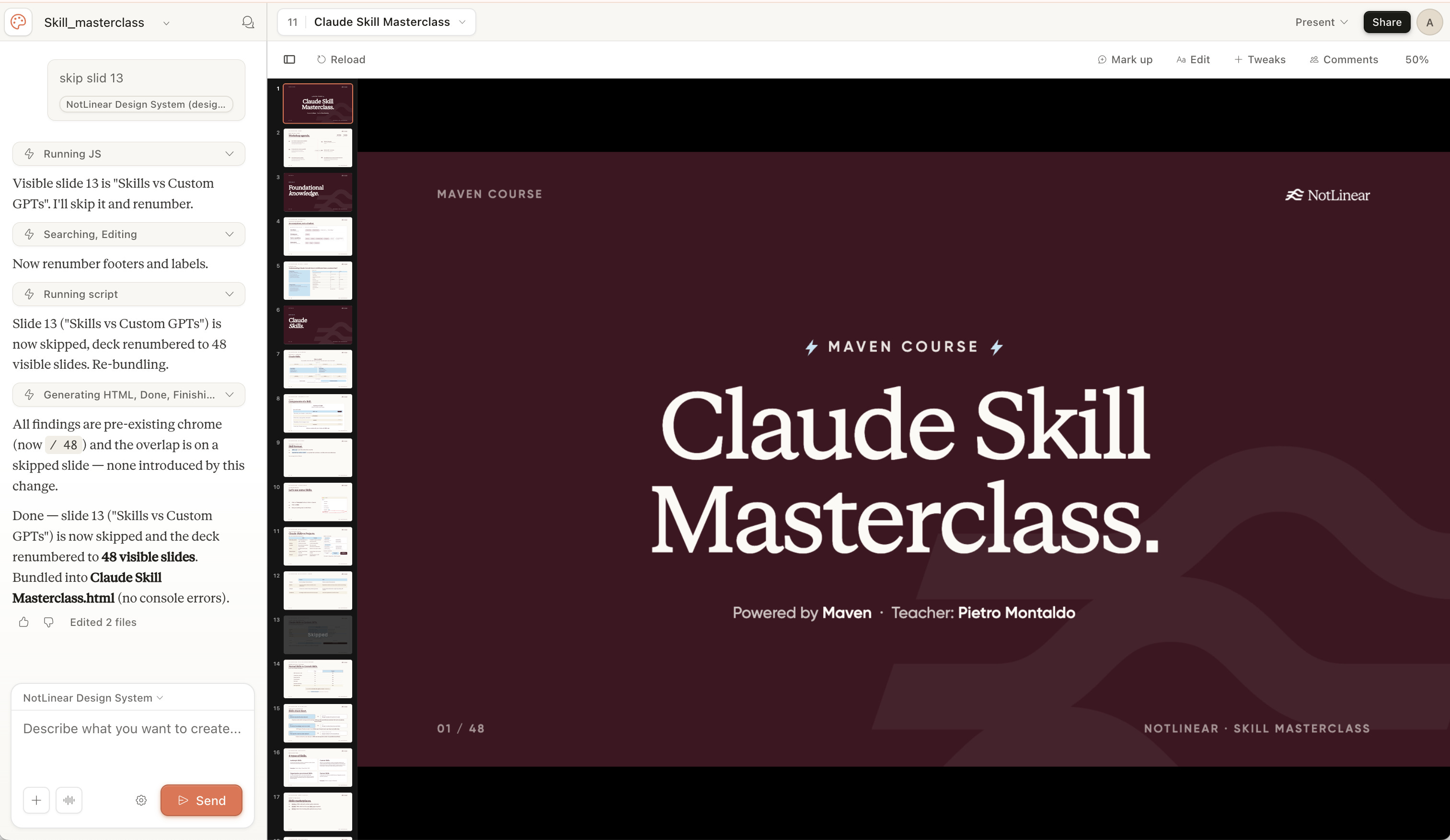
It started in the browser at claude.ai/design. Since June 20 it also lives inside the Claude desktop app.
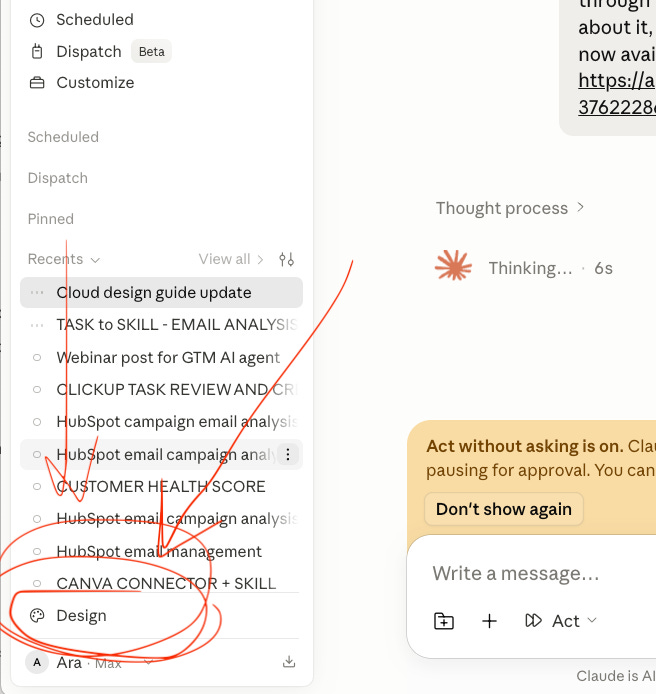
It’s in research preview on Pro, Max, Team, and Enterprise plans.
On Enterprise, it’s off until an admin switches it on, and it runs against your normal plan usage.
This is Part 1 of the guide (I will create more specific tutorials soon).
The full step-by-step, with screenshots and short videos of me doing each step, sits in the Notion guide linked at the very end.
Where it fits next to the rest of Claude
Four surfaces, four jobs. This is the mental model I give every team I train.
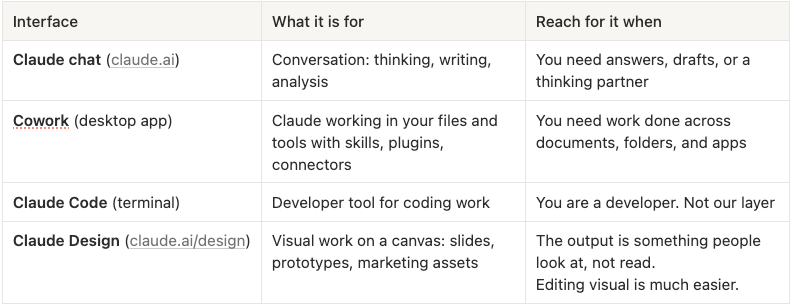
You can already make visuals in chat or Cowork with HTML artifacts. Design just makes the iterating and polishing far less painful, because the whole interface is built for it.
It builds HTML code, not pictures
Understand this before anything else.
Claude Design does not generate images. It writes HTML and renders it live on the canvas. That single fact explains how the whole tool behaves.
→ Your designs can be interactive, not flat pictures.
→ When you’re exporting to PPT or Canva, the HTML needs to be translated into visual, and the format suffers. The best option is to export to PDF or keep it in HTML in Claude Design for further usage and edits.
→ A finished design can be handed straight to Claude Code to build real software.
It runs on any Claude model. I use Opus 4.8 for the best visual output and only drop to a lighter model when I’m watching my credits.
Set up your design system first
A design system in Claude Design is nothing more than a skill. That’s the whole idea, and it’s the thing most people get wrong.
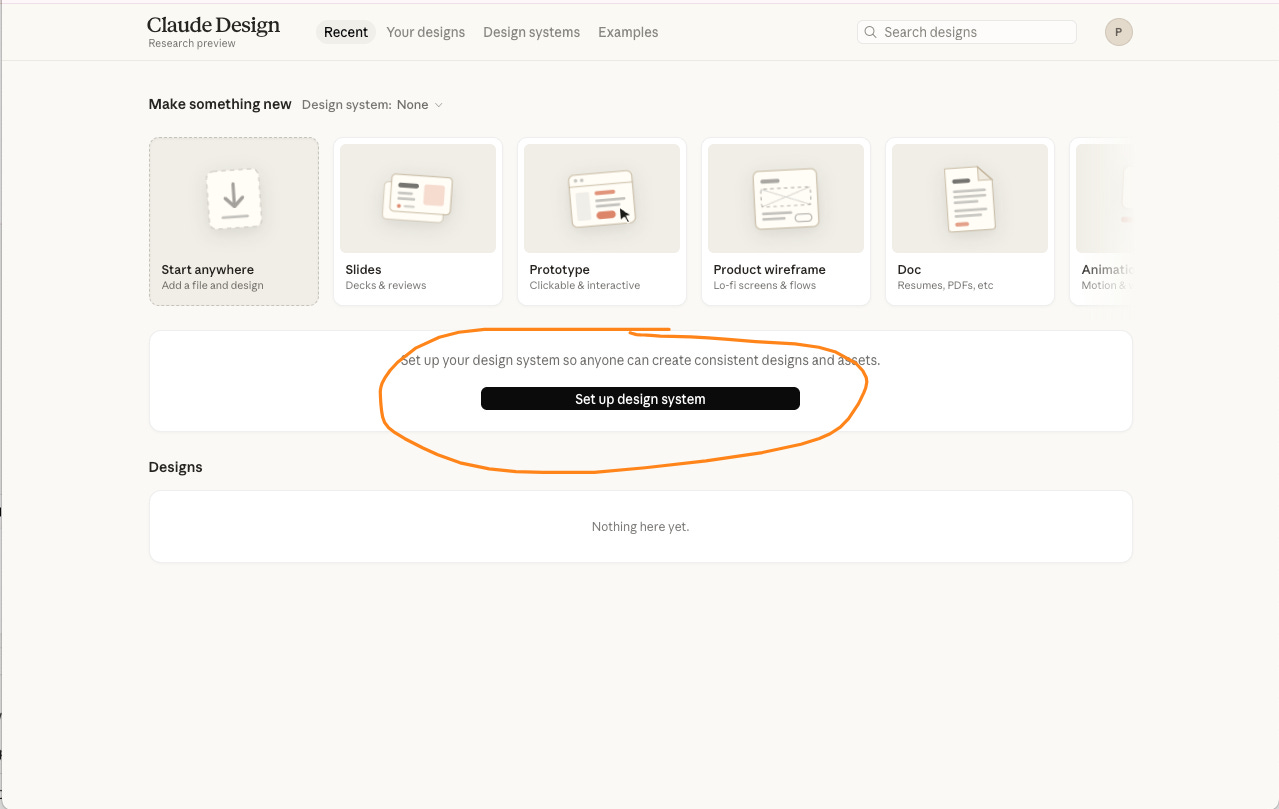
In Claude chat or Cowork you stack lots of separate skills, one per task. Claude Design doesn’t work that way. You don’t load a pile of generic skills.
You build one design system, and that single system is your skill for all of your design work. Anything you want applied across every presentation goes into it: your colors, your typography, your components, your spacing, your voice.
You build it once. After that, everything you make inherits it automatically. Skip it and every deck starts from a generic default. Do it well and every slide comes out on brand without you asking. That’s where I’d put the most effort.
There are two ways in.
Path A, when you already have a brand. Upload whatever defines it, best material first:
→ A codebase or component library, if your design lives in code
→ Prototypes, screenshots, existing design files
→ A well-designed slide deck or PDF, Claude pulls the colors, type, and layout straight out of it
→ Individual assets like logos and color palettes
One source is enough to start. Several is better. If you put no effort into this step, it shows up in everything you make afterwards.
Path B, when you have no brand yet. Point Claude at a website whose style you like and ask it to build a design system from that, adapted slightly so it isn’t a 1:1 copy. Good enough for decks and simple visuals. If you’re building a real product or site, you’ll want your own brand eventually.
You can keep more than one design system if you genuinely work in different styles, say one for your LinkedIn visuals and another for your newsletter. Each is still just a design-system skill that travels with every project and applies without you re-explaining it.
My playbook for creating presentations: craft the content, hand off the design
The mistake I see most is asking Claude to do the whole thing. You get a few slides right, then spend an hour fixing the rest.
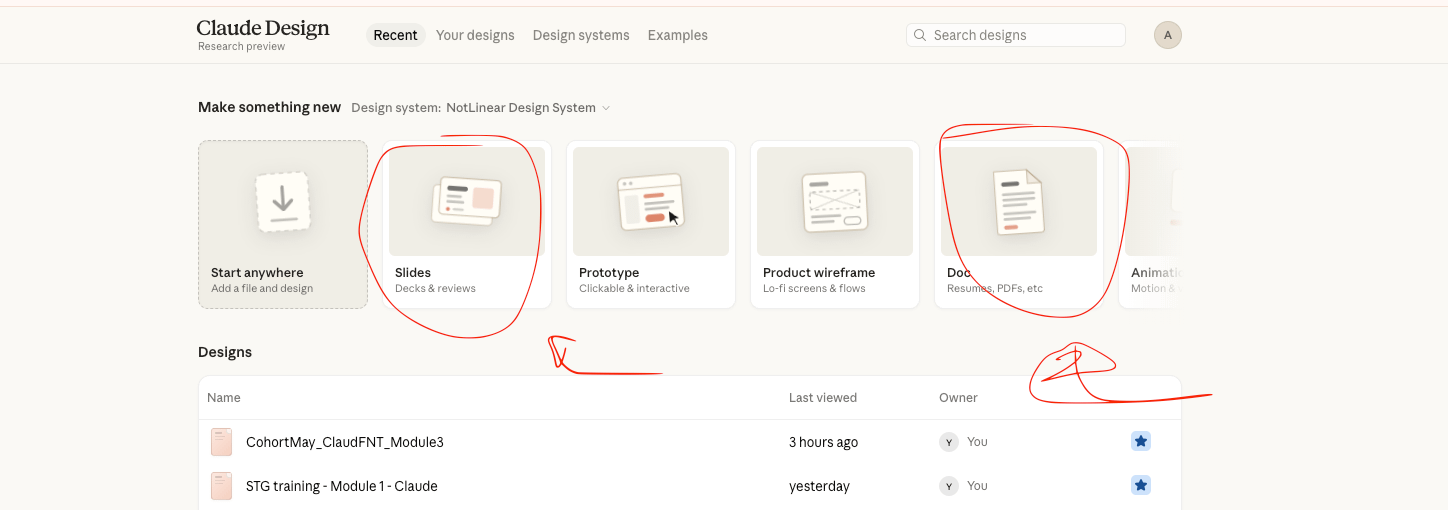
I do it the other way around. I own the content. I outsource only the design.
Here is my first draft, done by hand:
→ I build a rough version in Canva, PowerPoint, or Google Slides, whatever’s fastest
→ No visual polish at all, just the copy I actually want, close to final
→ I drop raw screenshots straight onto the slides
→ If a slide needs a specific format, like an infographic, I describe it right there on the slide
Now every bit of content lives inside that draft. That is the hard part, and the part you should not outsource.
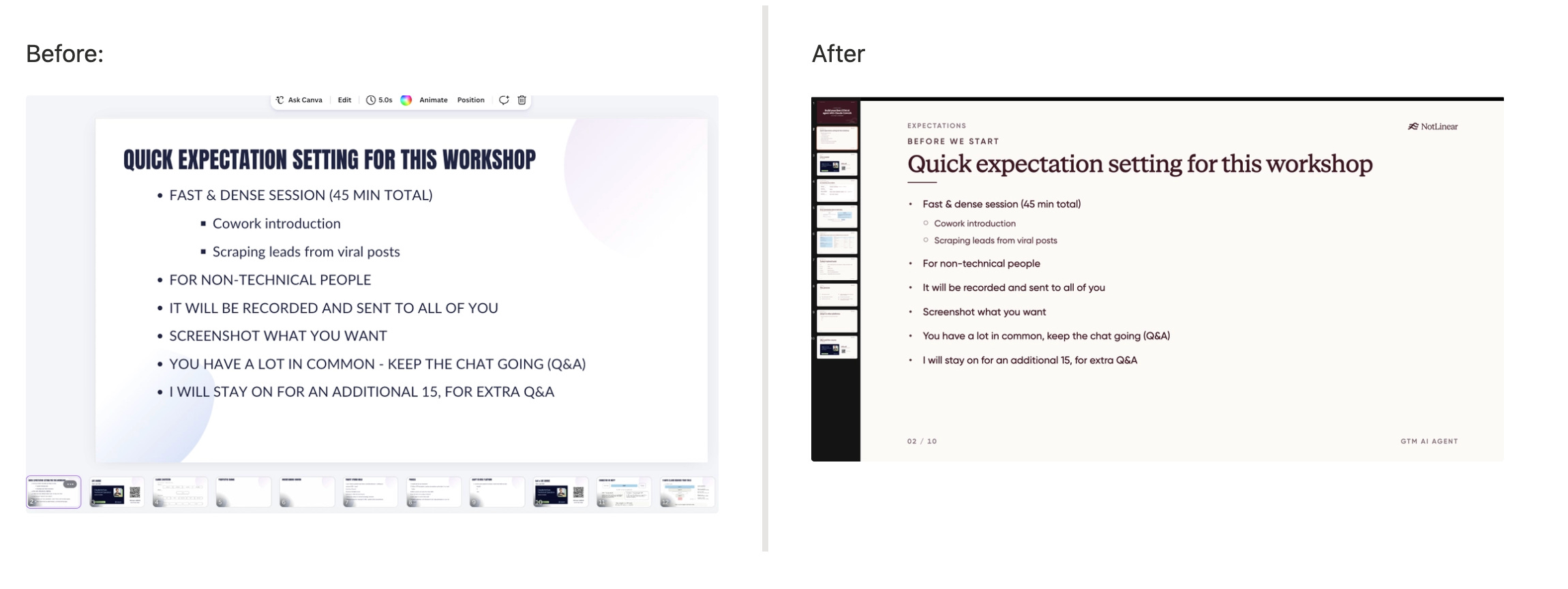
Then I start fresh in Claude Design, hand it the draft, and ask it to finalize everything with my design system. I keep thinking. Claude does the design.
Tips for better decks
Start simple, then layer in complexity. Begin with the core layout and content, then add interactions, edge cases, and polish. Claude responds well to incremental requests.
Be specific in your feedback. “This doesn’t look right” is hard to act on. “Tighten the spacing between form fields to 8px” gives Claude exactly what it needs.
Ask for variations. If you’re unsure about a direction, ask Claude to show you 2–3 options. Comparing alternatives is much faster than guessing.
Ask Claude for feedback. Claude can review your design for accessibility, contrast ratios, information hierarchy, and general usability. Treat it as a design collaborator, not just a generator.
Live Workshop This Month (FREE)
Build a Team of AI Agents in Claude Cowork
I’ll show you how to set up subagents in Claude Cowork, build a small agentic team live in 45 minutes, and combine subagents with skills to automate more of your work. You’ll leave with the templates for everything we build.
When: Wednesday, July 29 - 4:00 PM UTC (45 minutes)
Four ways to edit, and when to reach for each
The first version Claude gives you is a starting point. The value is in the iteration, and you have four tools for it.
→ Chat, for broad and structural changes. “Make the scheme darker.” “Move the metrics to the top row.” “Show me two or three alternative layouts.”
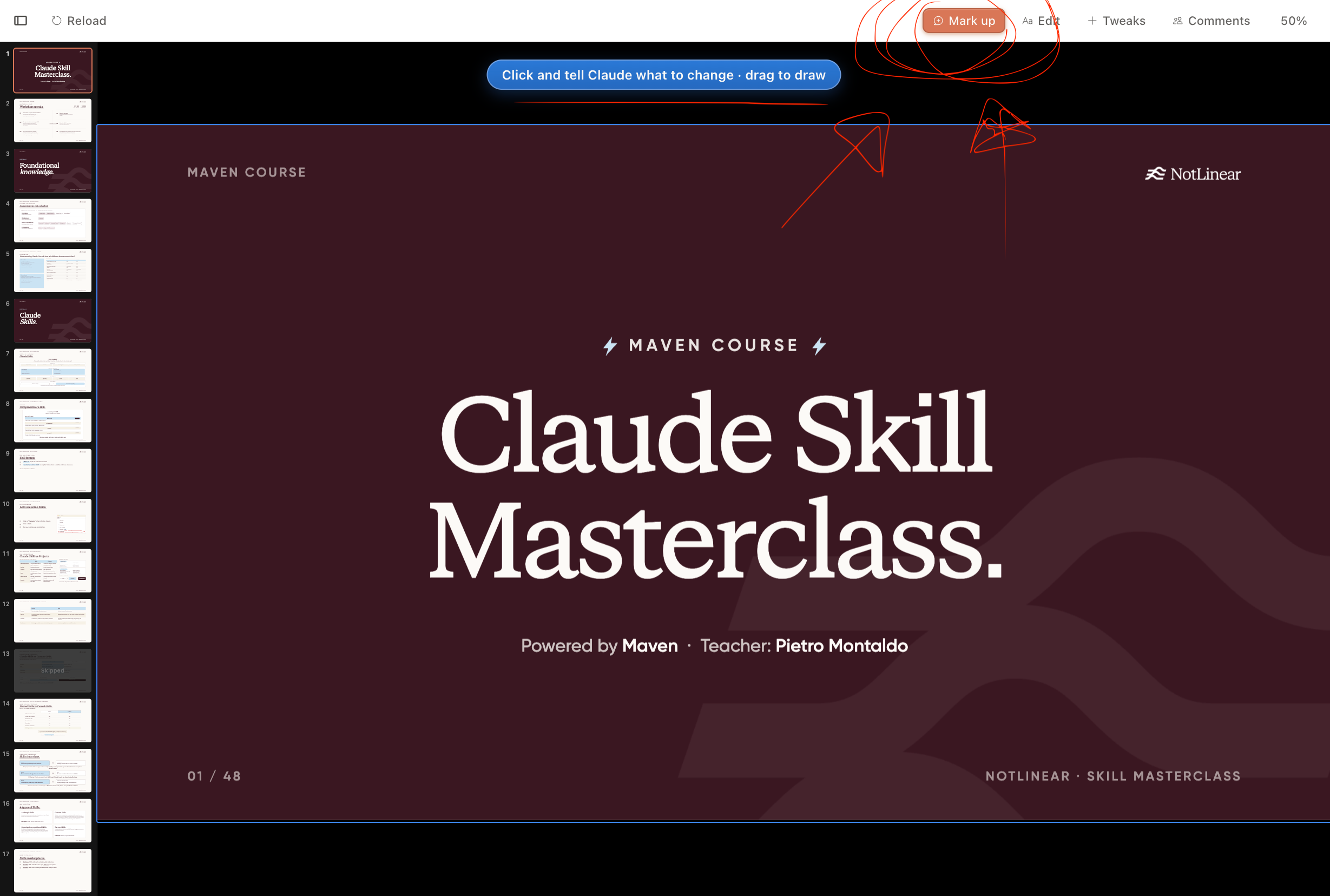
→ Markup, for targeted fixes. Click the exact spot on the canvas and ask. Faster than describing where it is in words.
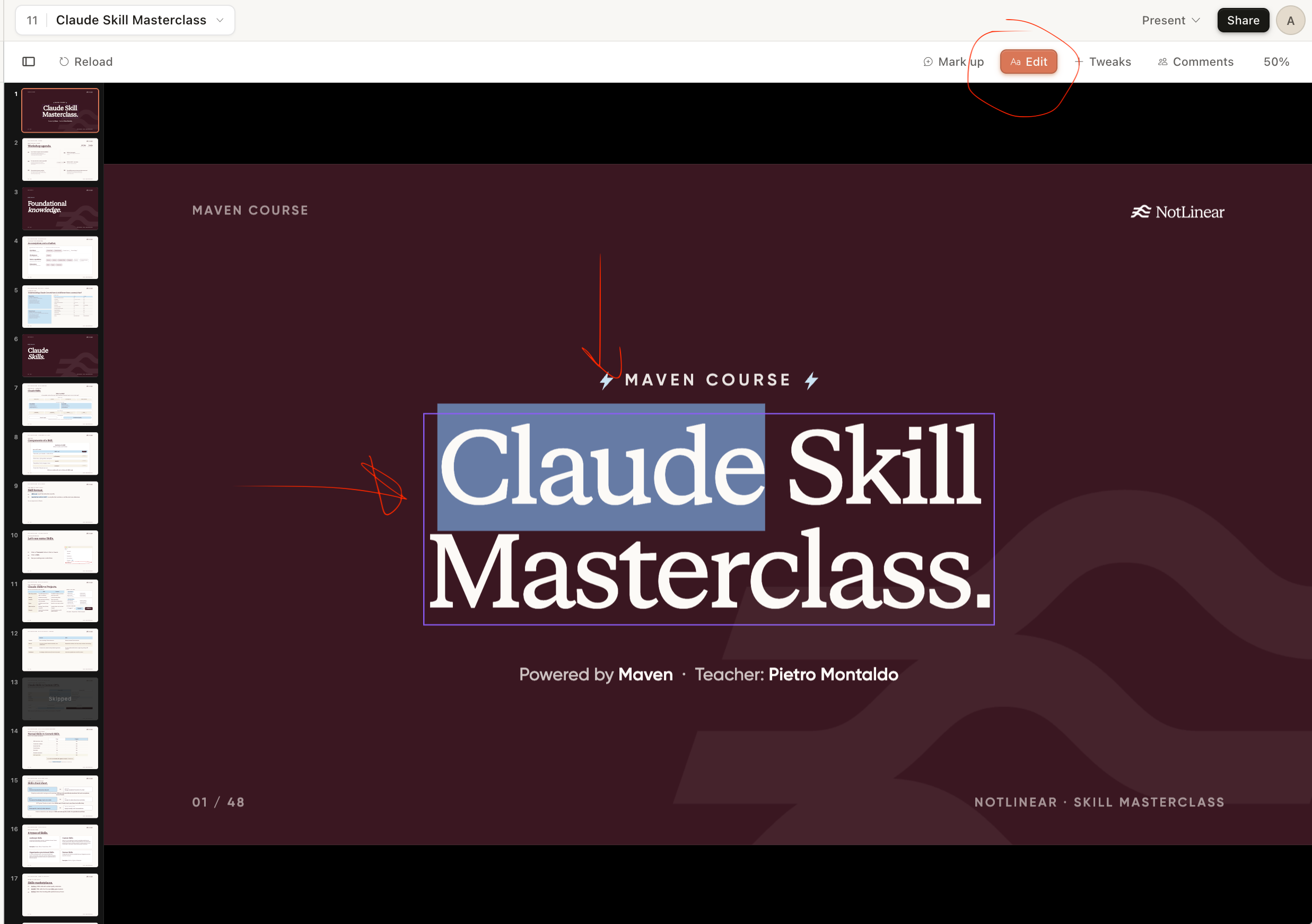
→ Edit, for manual control. Click into the canvas and change something yourself.
→ Tweaks, for live adjustments. A small panel of sliders for colors, fonts, and spacing that updates the design in front of you, with no re-render.
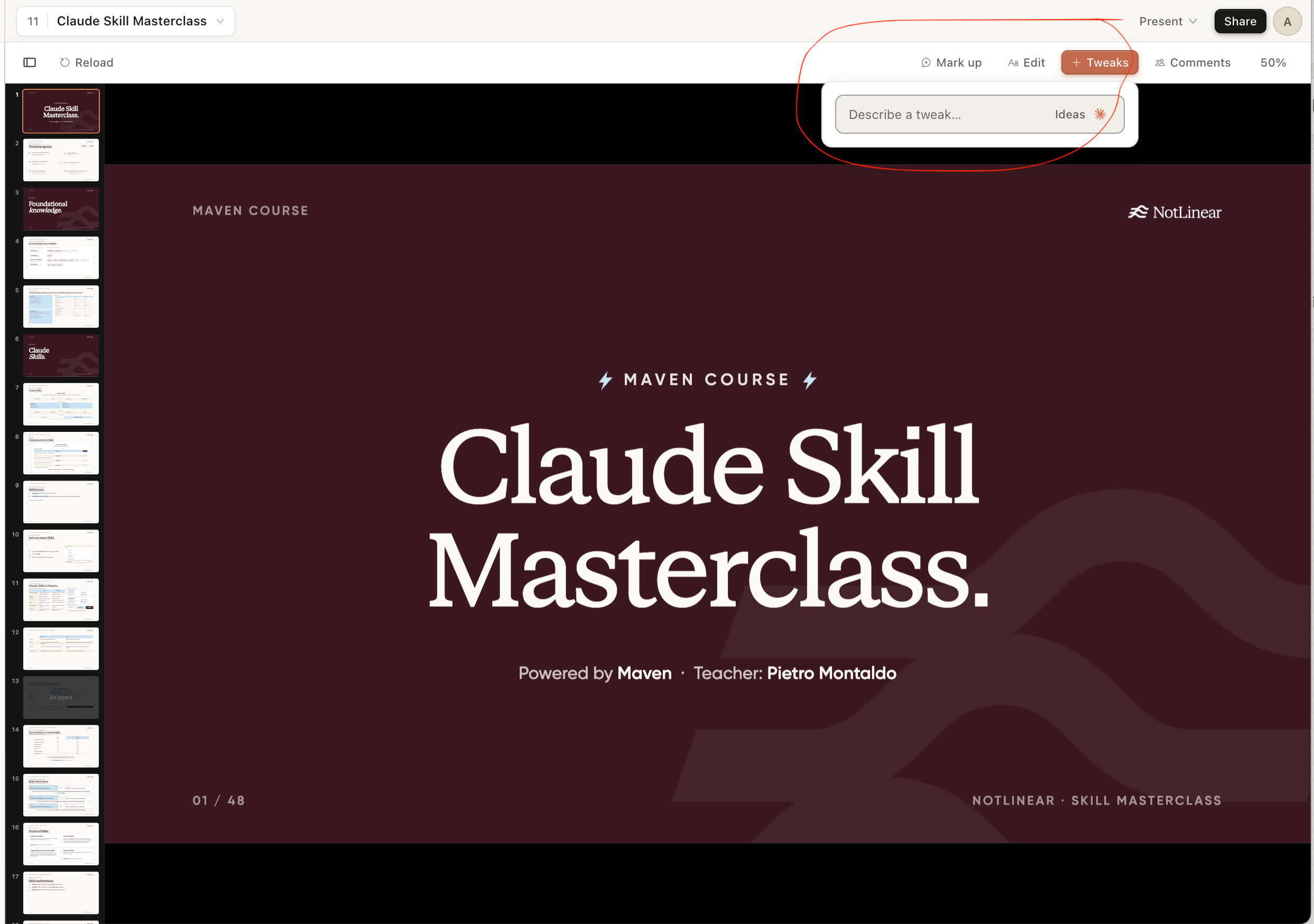
My rule: comments for one-off, component-level fixes, chat for anything structural or anything that needs context.
One heads-up, from the docs and from my own use: if a comment isn’t getting picked up, paste it straight into the chat instead. Known bug, easy workaround.
Before you export, run three quick checks by just asking Claude:
→ Confirm all the brand rules are applied
→ Run a spelling pass over the whole deck
→ Check that page numbers and pagination are consistent
Reusing a past deck
→ Open the presentation you want to reuse
→ Copy its URL
→ Paste that URL into a new chat as a reference
Claude opens the deck, explores it, and builds on the work you already did.
It’s not a polished native feature yet, and they’ll probably make it smoother over time, but this is how you reuse work today. One habit that helps: anything you want across every deck belongs in your design system, not in a single presentation. That way it applies every time, without you copying it over.
Adding animations, and where to steal them
Claude can animate a deck, or any design. You can describe the effect you want, but pointing Claude at an example works far better. Show it the animation, don’t try to spell it out in words.
One catch worth knowing: animations look great inside Claude Design and lose quality the moment you export. So treat an animated deck as something you present live or share as HTML, not as a PPTX.
For examples, there’s a free gallery called getdesign.md (I’m not affiliated). It collects designs and, more useful here, animation examples you can point Claude straight at.
It goes one step further. A brand’s whole design language can be written as a DESIGN.md file, which is basically brand guidelines in a format Claude understands. Grab the DESIGN.md of a brand you like, hand it to Claude Design, and the output starts to feel like theirs.
→ Download a DESIGN.md
→ Give it to Claude Design
→ Design like Mastercard
The limitations, my honest take
It lives at its own address and doesn’t talk to your main Claude or Cowork.
There’s no real version history, so if you apply an edit and close the tab, the previous version is gone.
Organizing your projects is still clumsy.
And because everything is HTML, exports lose quality when they leave that format. PDF and standalone HTML come out clean. Canva and PPTX degrade, and right now the Canva export barely works. Moving slides between decks mostly means copying HTML by hand.
What’s inside the full notion guide
Part 1, learn Claude Design (5 chapters):
→ Where it sits next to Claude chat, Cowork, and Code
→ Access, plans, and what it costs against your usage
→ How it actually works under the hood
→ Setting up your design system, both paths, step by step
→ The limitations, in full
Part 2, make good presentations (7 chapters):
→ Starting a project that inherits your brand automatically
→ My full deck-building playbook
→ Editing with chat, markup, edit, and tweaks
→ Reusing an old deck now that templates are gone
→ Exporting, connectors and skills, and adding animations
Everything you just read is free, and always will be.
Paid subscribers also get the full Notion guide to download, save and share, plus every past edition.
If you’re in a position to support the newsletter, our team is genuinely grateful. It’s what lets us publish more often, go deeper, and reach more people on Substack.
What’s coming out next week on LinkedIn and YouTube?
When to use Cowork vs building a workflow
That's all for edition #34 - any feedback is welcome, if you have any questions, you can respond to this email directly!
Let me know if you need any help!